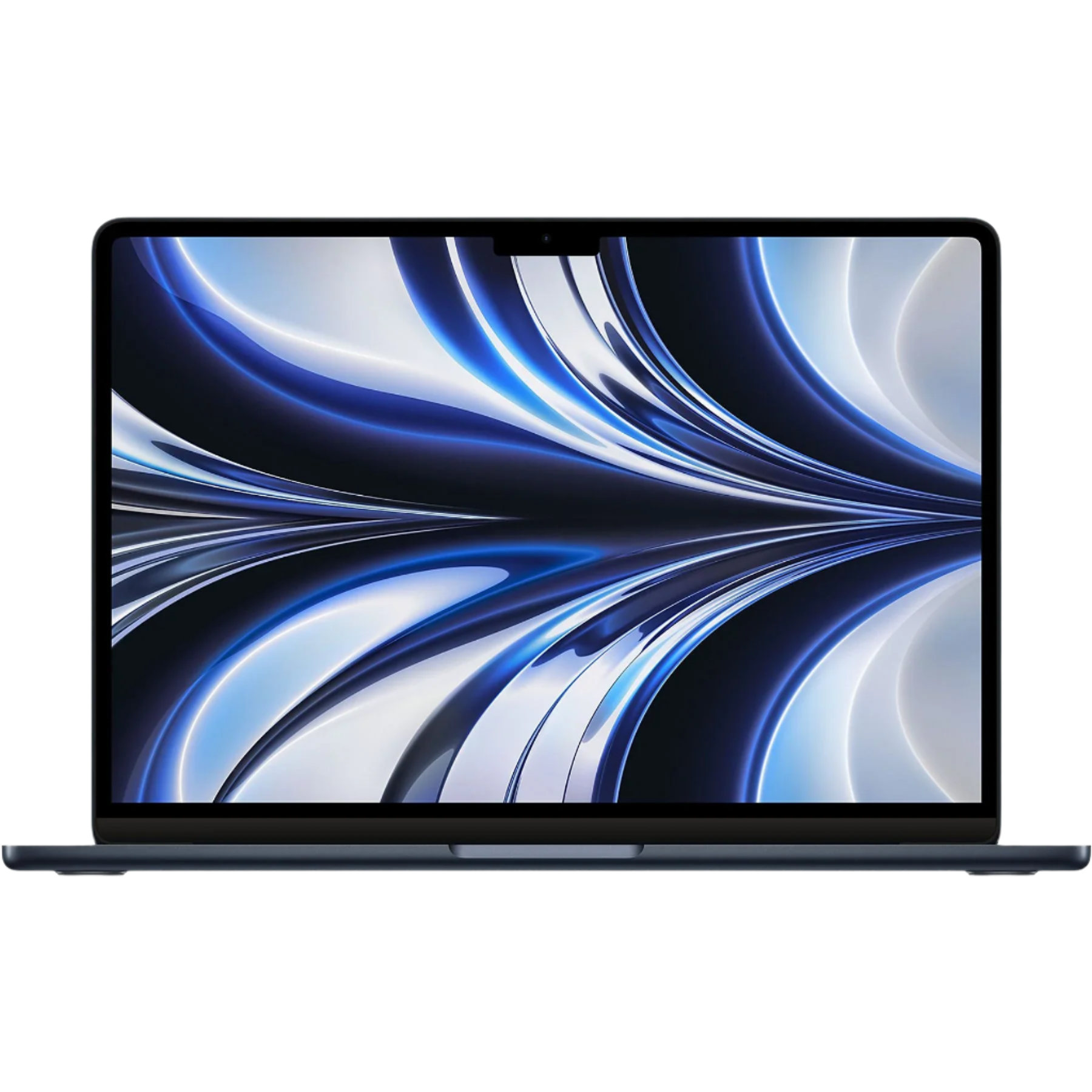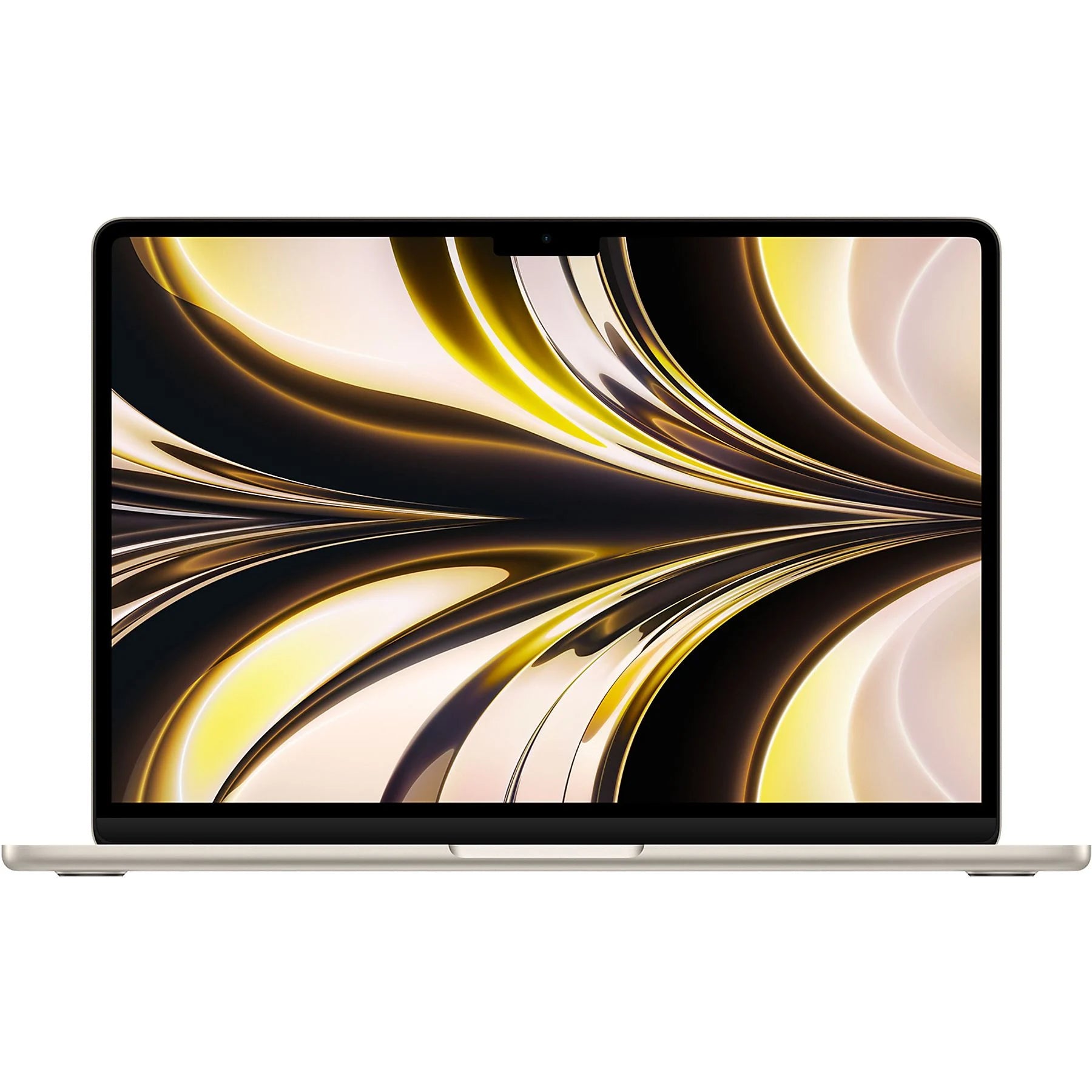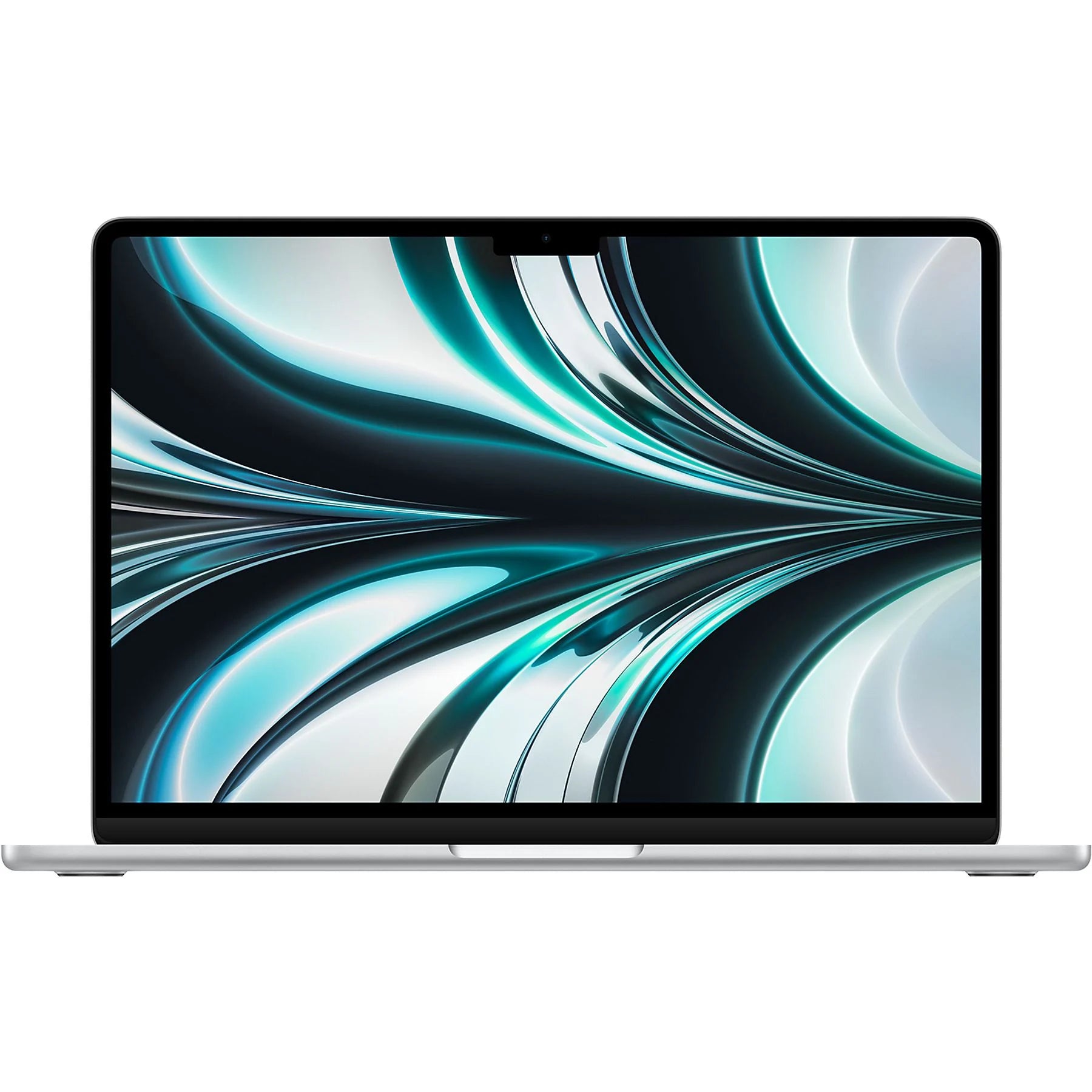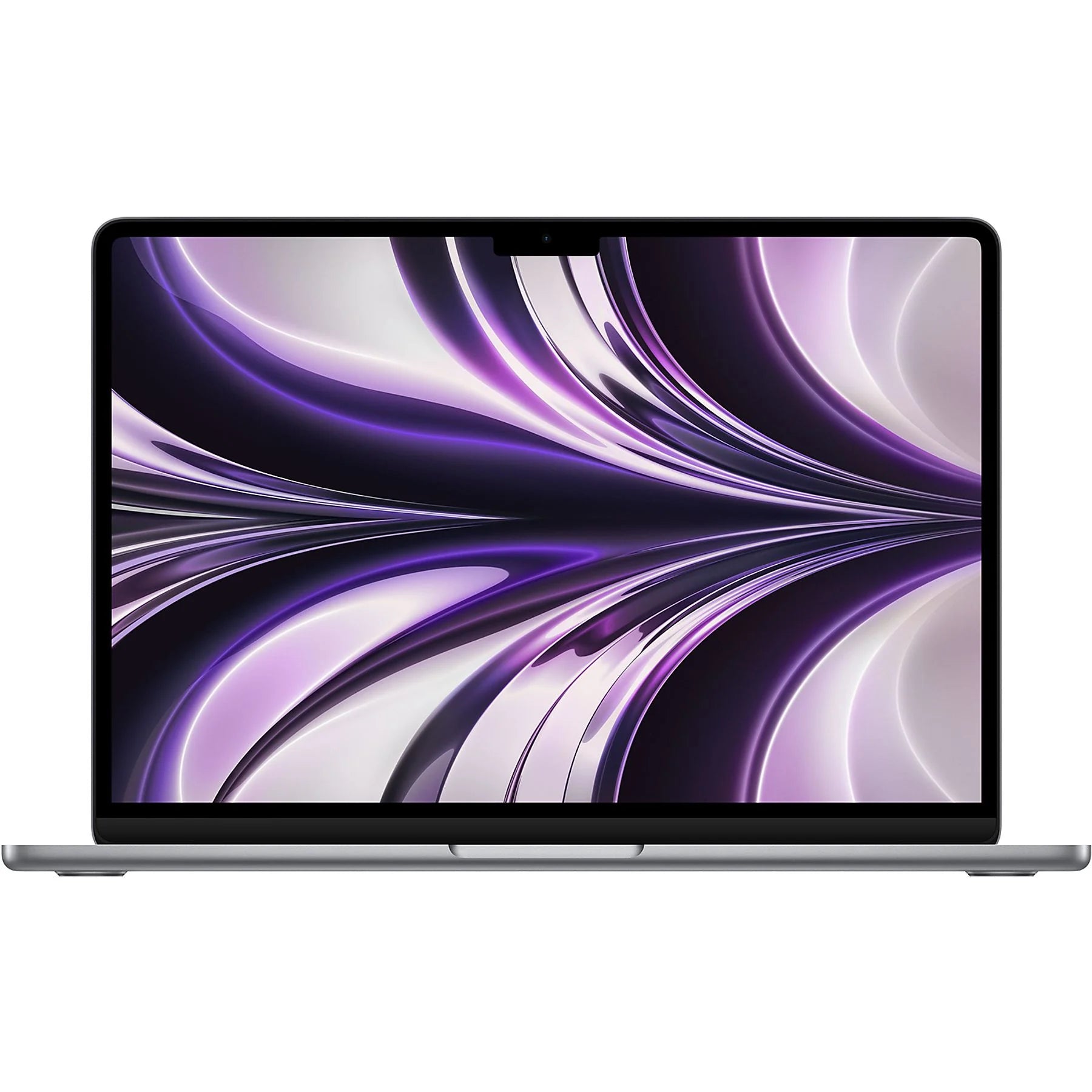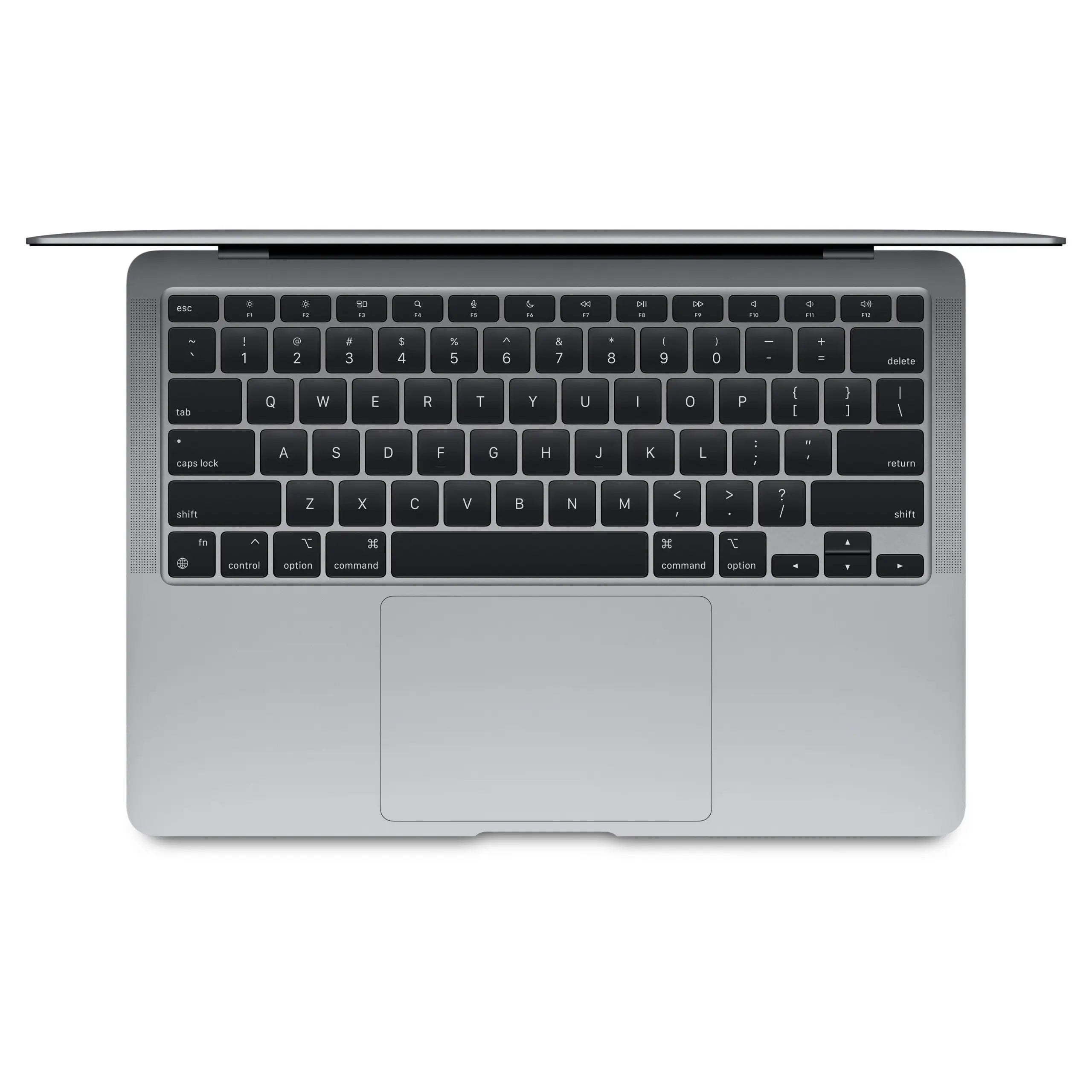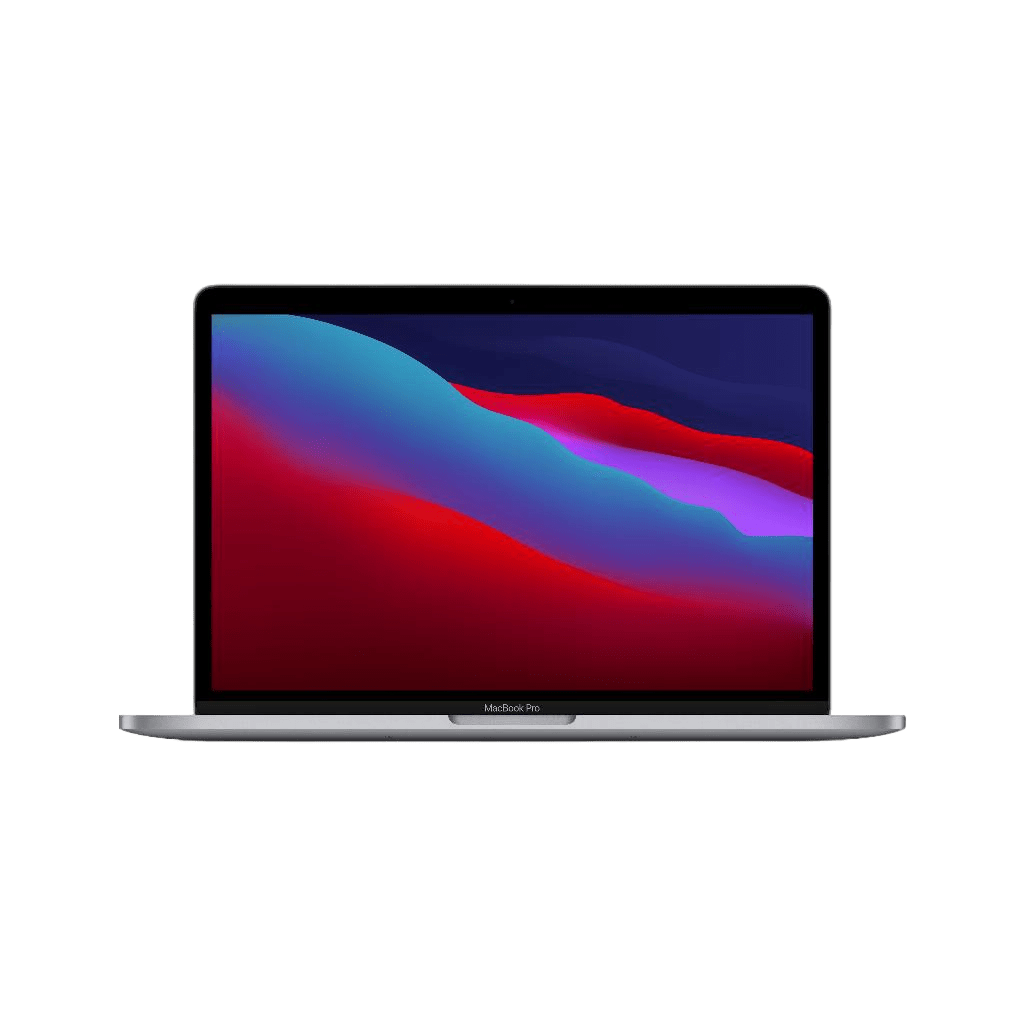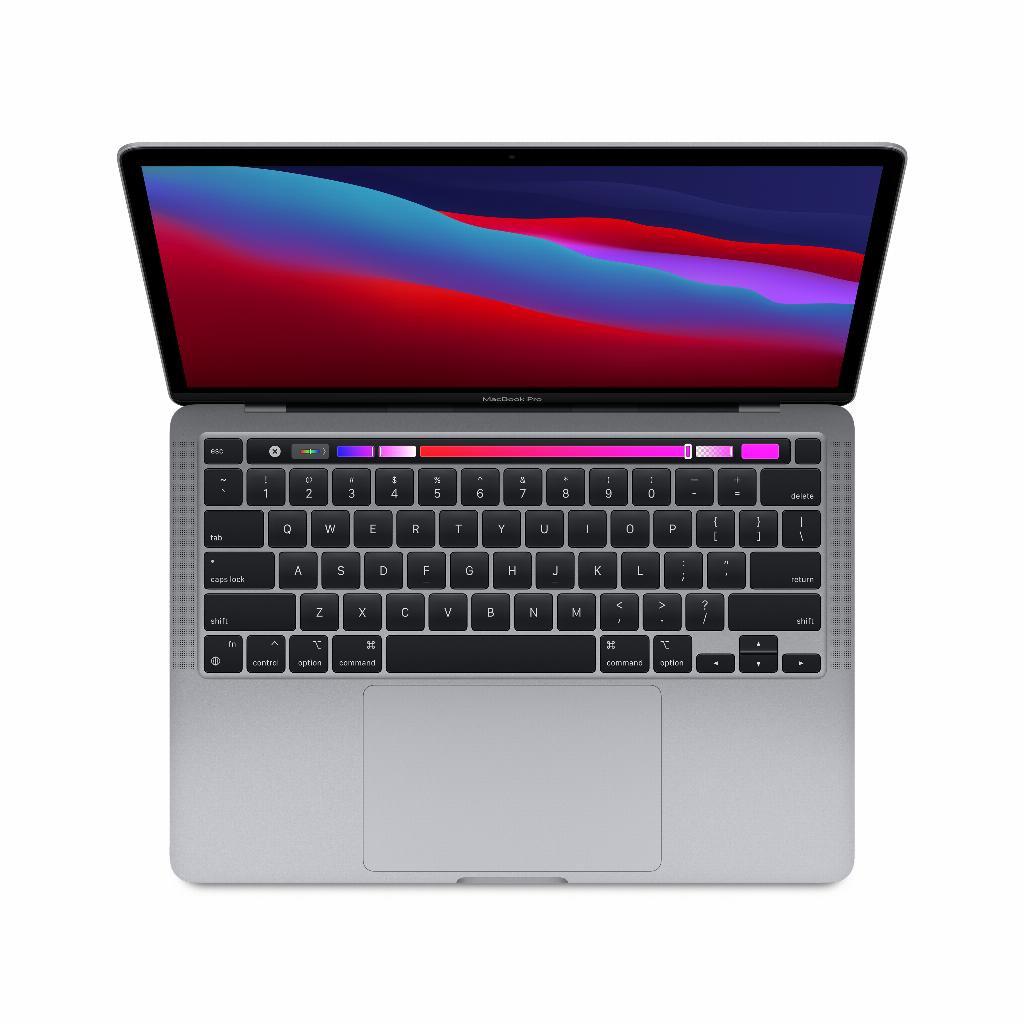

macOS Tahoe is packed with surprising features that take your productivity to the next level. From a customizable menu bar to smart Spotlight searches, these updates make your Mac experience even more intuitive. Are you looking for a MacBook that supports all these new capabilities? A refurbished model from leapp offers the perfect balance of performance, price, and durability.
100 essential macOS Tahoe tips for power users
Spotlight & quick search
- Spotlight shortcuts - type "nm" for a new message, "rem" for a reminder, or "ne" for a calendar event.
- Search history - in Spotlight, press the up arrow to see previous searches.
- Clipboard history - Spotlight remembers 8 hours of clipboard history, accessible via command + space, then command + 4.
- Website-specific search - type "Amazon" or "Bol," press tab, and add your search term.
- App filtering - filter Spotlight results directly by app in the search bar.
- Search open Safari tabs - Spotlight now also searches your open browser tabs.
- Spotlight categories - customize which categories Spotlight shows in System Settings > Siri & Spotlight.
- Direct actions - type an app name, press tab, and add actions directly without opening the app.
- Customize shortcut - create your own 1-12 character shortcuts for frequently used actions.
- Move Spotlight window - drag the Spotlight window to a location that works for you.
Menu bar & Control Center
- Fully customize menu bar - go to System Settings > Control Center to reorganize everything.
- Control Center widgets - add over 80 built-in controls, from screenshots to background sounds.
- Adjust tile size - choose between large, medium, and small for visual hierarchy in the Control Center.
- Direct to menu bar - drag items from the Control Center directly to your menu bar for permanent access.
- Lock screen clock font - choose from six font styles and adjust thickness via System Settings > Desktop & Screen Saver.
- Menu bar background - adjust the transparency and color of the menu bar background.
- Live Activities in menu bar - iPhone Live Activities now also appear in your Mac menu bar via iPhone sync.
- Quick brightness control - use the new slider in the Control Center for fine-tuning.
- Focus shortcut - activate Focus modes directly from the updated Control Center.
- Switch audio output - switch between AirPods, speakers, and other audio outputs with one click.
Window management & multitasking
- Window tiling - drag a window to the side of your screen to automatically place them side-by-side.
- Maximize without Mission Control - drag a window to the top without activating Mission Control.
- Save window groups - create sets of windows that you open and close together.
- Stage Manager improvements - recent apps are now smartly sorted based on usage.
- Window focus - click on a window to bring it to the foreground without extra steps.
- Desktop Spaces naming - give your different desktops specific names for better organization.
- Quickly switch between Spaces - use control + arrow keys for quick navigation between desktops.
- App Exposé - swipe down with four fingers on your trackpad to see all windows of one app.
- Minimize to application icon - activate this option in settings to keep your Dock tidy.
- Customize Split View - drag the separator between apps for different ratios.
System Settings & appearance
- Colors for icons and folders - go to System Settings > Appearance for custom color themes.
- Accent color independent - choose a different accent color than your text highlight color.
- Dark mode schedule - plan automatic switching between light and dark mode at specific times.
- Trackpad speed - fine-tune trackpad sensitivity in System Settings > Trackpad.
- Keyboard response speed - adjust key repeat rate and delay for faster typing.
- Pointer size - make your mouse pointer larger or smaller for better visibility via Accessibility.
- Auto-hide/show Dock - set the delay for your Dock to appear.
- Quickly switch screen resolution - create different resolution presets for various tasks.
- Battery status in menu bar - add a detailed battery percentage via System Settings > Control Center.
- Login items per focus - link startup apps to different Focus modes.
Productivity & automation
- Shortcuts automations - activate tasks on time, app launch, or when a screen is connected.
- Apple Intelligence in Shortcuts - use AI actions for text analysis and generation.
- Automate file organization - automate sorting downloads into the correct folders.
- External screen triggers - activate specific apps or Focus modes when connecting a monitor.
- Battery level triggers - start power-saving actions at a certain battery percentage.
- Voice-over for text - select text and use the new, more natural-sounding voices.
- Expand text replacement - add complex snippets with formatting and emojis via System Settings > Keyboard.
- Quick Note improved - create notes from any app with a swipe from the corner of your trackpad.
- Reminders subtasks - create complex project lists with subtasks and tags in the Reminders app.
- Calendar natural language input - type "lunch with team tomorrow 12 pm" and Calendar understands it instantly.
Safari & browsing
- Safari profiles - create separate profiles for work and personal use with their own bookmarks and history.
- Tab Groups - drag tabs to group them and name your groups.
- Pin tabs - pin frequently visited websites so they always stay open.
- Customize start page - choose which sections appear on your Safari start page via the settings icon.
- Disable website colors - go to Preferences > Tabs > Show color in tab bar for a calmer view.
- Reader Mode automatically - activate automatic Reader View for specific websites.
- Pop-up blocking per site - manage pop-up permissions for individual websites.
- Safari web apps - add websites to your Dock as standalone apps via File > Add to Dock.
- View Privacy Report - see which trackers Safari has blocked per site via the shield icon.
- iCloud Tabs - enable iCloud Tabs for seamless browsing across your devices.
Finder & files
- Finder tags improved - color-code folders and files with multiple tags.
- Quick Actions in Finder - create PDFs, GIFs, or archives with a right-click.
- Custom Finder sidebar - drag your most used folders to the sidebar for quick access.
- Folder emojis - add emojis to folder names for visual organization.
- Quick Look - select a file and press the spacebar for a preview.
- Save Finder searches - save complex searches as Smart Folders.
- File info overlays - show file size and info directly on the desktop via View Options.
- Quickly eject external drive - drag the drive icon to the trash or use command + e.
- View options per folder - remember different view settings (list, icons) per folder.
- Show Path Bar - go to View > Show Path Bar to see your current location.
Gaming & entertainment
- Game overlay shortcut - use command + esc for in-game settings without leaving the game.
- Game Mode - automatically prioritizes games on the processor for better performance.
- Controller assignment - customize your game controller buttons per game via settings.
- Screen recording quality - adjust recording quality for gameplay videos.
- Picture-in-Picture shortcut - double-click videos (sometimes right-click twice) for quick PiP activation.
- Apple Music crossfade - activate crossfade between songs in the Music app settings.
- Podcast speed - adjust playback speed per podcast episode.
- Music recognition in menu bar - recognize music with the new system-wide Shazam button in the Control Center.
- Game Center synchronization - see your achievements and friends directly in the game overlay.
- Low power mode for games - extend battery life during gaming without much performance loss.
Privacy & security
- Advanced tracking and fingerprinting protection - activate this in Safari settings for extra privacy.
- Private Relay - use iCloud Private Relay to mask your IP address.
- Hide My Email - generate temporary email addresses for online forms.
- App Privacy Report - see which apps have accessed what data in System Settings.
- Lockdown Mode - activate this for maximum security against specific digital threats.
- Password monitoring - let System Settings check for leaked passwords.
- Two-factor authentication - use the built-in verification code generator in Passwords.
- Keychain synchronization - securely sync passwords via iCloud Keychain.
- Firewall per app - manage which apps have internet access in network settings.
- Secure erase - use Disk Utility to securely erase sensitive external drives.
Accessibility & ease of use
- Motion cues in vehicles - go to System Settings > Accessibility > Motion to prevent motion sickness.
- Voice Control expanded - use more natural commands for full voice navigation.
- Zoom - magnify specific parts of your screen with a scroll gesture and modifier key.
- Increase contrast - improve readability via Accessibility > Display.
- Text size per app - adjust font size individually for specific apps.
- Mono audio - combine audio channels for use with a single earbud via Accessibility > Audio.
- Sticky Keys - make key combinations easier by latching modifier keys.
- Enlarge text under pointer - hold command to display text under your cursor largely.
- Live Speech - type what you want to say and have your Mac speak it during FaceTime calls.
- Personal Voice - create a digital voice that sounds like you for use with Live Speech.
Why refurbished is the future-proof choice
These features demand a MacBook that is 100% technically sound. At leapp, that means no compromises, only certainty. Every MacBook undergoes a 50-point check, where we scan the logic board, SSD, and sensors with Apple diagnostic tools. Deviations such as SSD wear or speaker noise are immediately logged and resolved.
Battery worries? We eliminate them. If the battery has more than 500 cycles or less than 85% health, we install a high-quality replacement battery. This way, your MacBook will last an entire workday or study day again.
Cooling that continues to perform - we replace thermal paste, clean fans, and remove dust buildup. For pro models (2021 and later), we guarantee silent and cool operation, even during heavy 4K video editing or 3D rendering.
Choose the model that suits you
MacBook Air (M1 to M4)
This MacBook is perfect for students, writers, and travelers. Its weight remains under approximately 1.3 kg, the Liquid Retina display is bright, and the battery lasts up to 18 hours with the M4 (2025). Our refurbished Air models have at least 8 GB RAM and a keyboard without wear thanks to top case replacement.
MacBook Pro 14″ / 16″ (M1 Pro to M4 Max)
These models are ideal for 4K video editing, software development, and other demanding workflows. You get a 120 Hz mini-LED display, HDMI 2.1, and an SD card slot. We replace fans and thermal paste and check for speaker distortion.
MacBook Pro 15″ (Intel & M2)
This is the large screen for a smaller budget. Intel models perform well with, for example, Lightroom and older macOS apps. For Intel, we check the discrete GPU and perform SSD SMART health checks.
What customers say
"Delivered within 24 hours. Good condition and value for money. Just happy with it" - Jeroen H. about his MacBook Air M1.
"MacBook Pro in perfect condition for a good price. Absolutely top-notch" - Roland Theune.
"The friendliness and service of the staff are always top-notch" - 11soof, second-time buyer.
Your benefits with leapp
- ordered before 22:00 → shipped today (on weekdays)
- includes free charger & USB-C/MagSafe cable
- 14-day cooling-off period – money back if not satisfied
- two-year warranty on device and battery
- up to 60% cheaper and 78% less CO₂ than new
- refurbished quality mark – 100% technically sound
Ready to experience macOS Tahoe on a refurbished MacBook?
View our full range:
Our experts are ready to help you, via email, chat, or simply by phone. Every point of attention from our buying tips (battery, keyboard, SSD, cooling, ports) has been resolved in advance. So you get a MacBook that is immediately ready for use and future-proof.